Business Central : Word Layout date fields formatting
UPDATE!!
Hello readers, below instructions use to work 2 years ago, and now they don’t appear to work anymore.
Most likely, you would need to ask your developer to send the field in the needed format via a report extension or report.
Original blog
One of my co-workers asked how can we format a date field in a MS Word Layout document so that it only shows the date but not the time.
To get started with adding fields to a Word Report Layout start with this:
How to Add Fields to a Word Report Layout - Business Central | Microsoft Docs
Let’s say you added a date field: CustomDate to a BC report.
When you run the report the date field renders on the report as DateTime: 30-06-2021 12:00:00.
How do we enforce the report to only display the date: 30-06-2021
Let’s look at a simple example: you want to add to the report 206, Sales Invoice, in a custom Word Layout the DueDate_SalesInvHeader field from the dataset.
If you followed the link above you might have now a control on your document that looks like this:
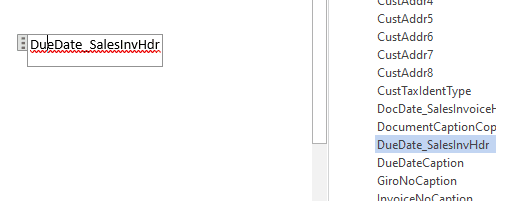
If this field is coming from AL with Date and Time components, how do we format it so it only shows the Date?
In RDLC you would go to the properties of the text box that is hosting your datetime field and change the Format property to “d”.
How about Word Layouts?
It’s quite simple, but not easily available in the documentation.
You would change the date field in the layout to show like this:

You can change the formatting to match your region. In US: dd/MM/yyyy.
There is always the option of writing an extension and send to layout an already formatted date field as text.
Need a report or a Word layout changed in your own BC? I do this kind of work often. Reports and AL development →